
What a kill switch protects
A VPN tunnel carries traffic between your device and the VPN server over an encrypted connection. If that tunnel drops, the operating system may try to continue over the ordinary network path. A kill switch is intended to stop or limit that transition until protection returns. The brief gap matters most during a network change, a provider interruption, or unstable public Wi-Fi where the tunnel can disappear without much warning.
This safeguard addresses the connection path during a drop. It does not make a phishing page genuine, remove tracking from an account you use, inspect a malicious download, or replace HTTPS and two-factor authentication. You still need to confirm BratVPN's active state before opening sensitive work. A successful harmless test on one device is evidence about that setup, not a permanent guarantee for every platform and network.
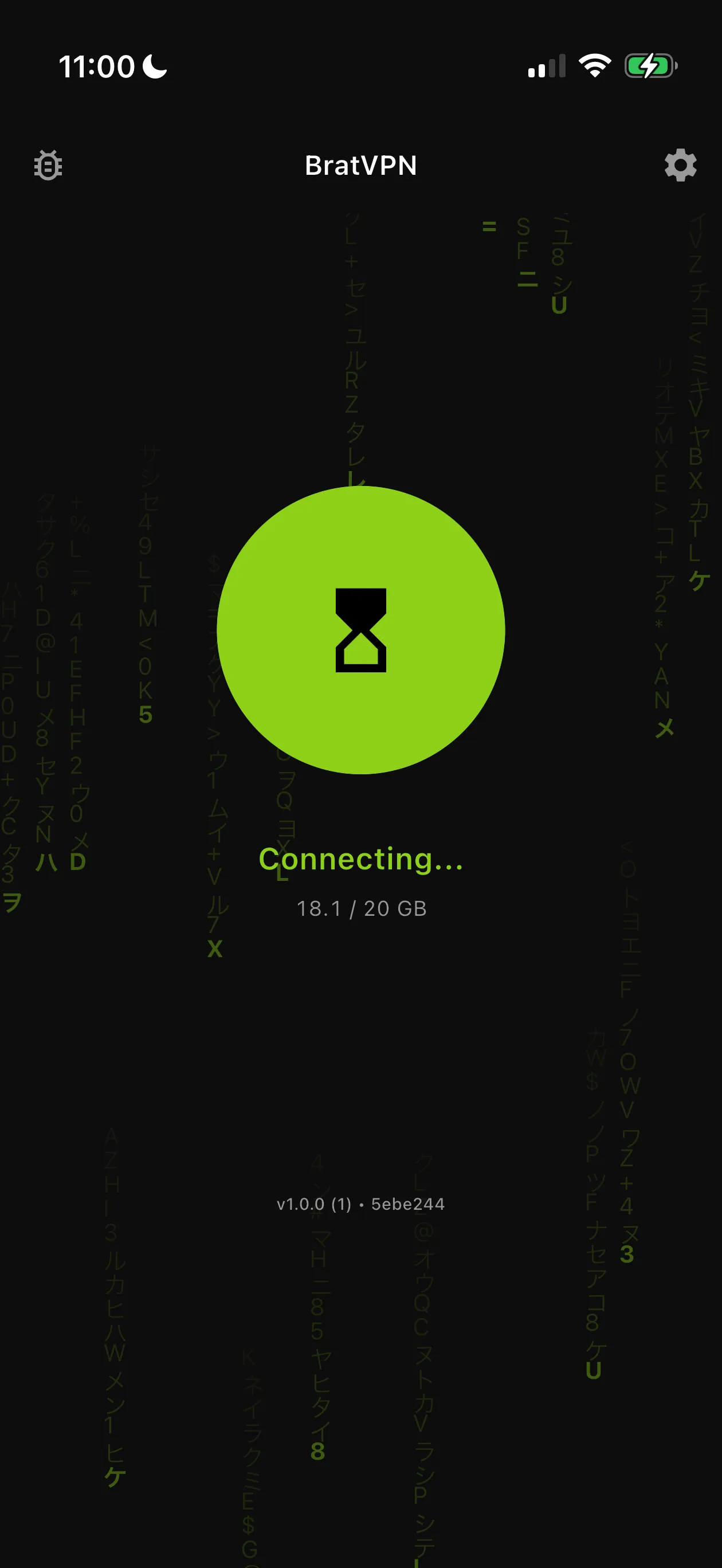
Platform controls vary
Kill switch is not a universal label used by every operating system. Depending on the platform and version, related behavior may appear under always-on VPN, on-demand connection, block connections without VPN, a network-lock setting, or no separate visible switch. The system may also give an app different capabilities on iOS, Android, macOS, and Windows. Check the current app and operating-system settings instead of copying a screen from another device.
This guide does not claim that one user-facing control exists in every BratVPN build. If the expected option is absent, do not install an unofficial profile or change hidden settings from a random script. Note the platform, operating-system version, and BratVPN version, then ask support what behavior is available there. On a managed work or school device, the administrator may own the VPN profile and block changes.
Check connection-drop behavior safely
Choose a quiet moment when a temporary loss of internet will not interrupt a call, upload, purchase, or work session. Close banking, work, health, and other sensitive apps. Open a harmless HTTPS test page that requires no account. The purpose is to observe whether simple loading resumes before BratVPN reports a protected connection, not to expose real data as proof.
Change one condition at a time. You might briefly enable airplane mode, or switch between trusted Wi-Fi and mobile data, then restore the connection. Do not change the server, restart the app, and alter system settings during the same observation. Too many variables make the result impossible to interpret. If anything is unclear, stop sensitive activity and reconnect normally before investigating further.
- 1Close banking, work, and other sensitive apps before the test.
- 2Connect BratVPN and confirm the app shows an active connection.
- 3Open only a harmless test page or connection check.
- 4Interrupt the network briefly by switching between trusted Wi-Fi and mobile data or using airplane mode.
- 5Observe whether the test page resumes before BratVPN reports a protected connection.
- 6Review the current BratVPN and operating-system VPN settings for always-on, on-demand, or block-without-VPN controls where available.
- 7If behavior is unclear, stop sensitive activity, reconnect, and ask support with platform and app version.
What a successful check means
Compare three moments: when the network disappears, when BratVPN loses or changes its active state, and when the harmless page can load again. The precise expected behavior depends on the available platform controls. Do not continue sensitive work merely because the browser tab stayed open. Wait for an unambiguous protected state after the network returns and repeat the same safe check once if the first observation was unclear.
One result is not a certification. An operating-system update, BratVPN update, managed profile, or network-policy change can affect behavior later. Repeat a brief safe check after a significant update when drop protection is important to your routine. Frequent forced interruptions are unnecessary. The useful outcome is a clear, repeatable understanding of the current device, plus a cautious procedure for reconnecting before private activity.
Smart routing and expected direct traffic
Smart routing can allow suitable local services to use a direct path while other traffic remains in the VPN tunnel. A local service continuing to work while BratVPN is active therefore does not automatically mean a kill switch failed. First identify whether that service is intentionally direct. Test with a harmless destination whose expected route you understand and compare the result with the smart routing guide.
An expected direct route and an unexpected fallback after a tunnel drop are different events. This distinction matters for banks, maps, delivery apps, and other services that may use local infrastructure. Do not use an account balance or private message as a routing indicator. If the classification is unclear, give support the service name, platform, network type, and time without sending credentials or the content of your activity.
If traffic resumes unexpectedly
Stop sensitive activity and reconnect BratVPN manually. Check whether another VPN, proxy, DNS filter, security tool, or managed profile is controlling the same network path. Review only settings you recognize and are authorized to change. Do not remove a workplace profile, accept an unknown certificate, or install software that promises a universal kill switch outside official app and operating-system sources.
Repeat the harmless test once under the same conditions. If the result persists, contact support with the device, operating-system version, BratVPN version, network type, approximate time, and ordered steps. Remove names and notifications from any screenshot. Never send passwords, full activation codes, private work data, card details, wallet keys, or seed phrases. Until the behavior is understood, wait for the app's protected state after every network change.
Frequently asked questions
Does every device call the feature a kill switch?
No. Names and system-level options vary by operating system, version, and app. Check the current BratVPN and system VPN settings for your device.
Does smart routing mean the kill switch failed?
No. Intentionally direct traffic must be distinguished from an unexpected tunnel drop. Use a harmless test and confirm the expected route first.
Can I test with banking or private work data?
No. Close sensitive apps and use a harmless page that requires no account. Stop private activity whenever the connection state is unclear.